
Use an update for news every driver needs, like a road closure, a holiday schedule or a new rule. Drivers see it in their app for 90 days, and you can see who has read it.
Steps
In the menu on the left, under Operations, select Communications. Then select the Updates tab.
Select New update. The Send an update form opens.
Under Who gets it, select All active drivers. For a single driver, select One driver and pick them in Driver.
Under Priority, keep Normal, or select Urgent for something drivers must see right away. Urgent updates are marked in red.
Type a Title, like SW 27th Ave closed Monday, and the Message drivers will read.
To have each driver confirm they read it, turn on Ask drivers to sign off.
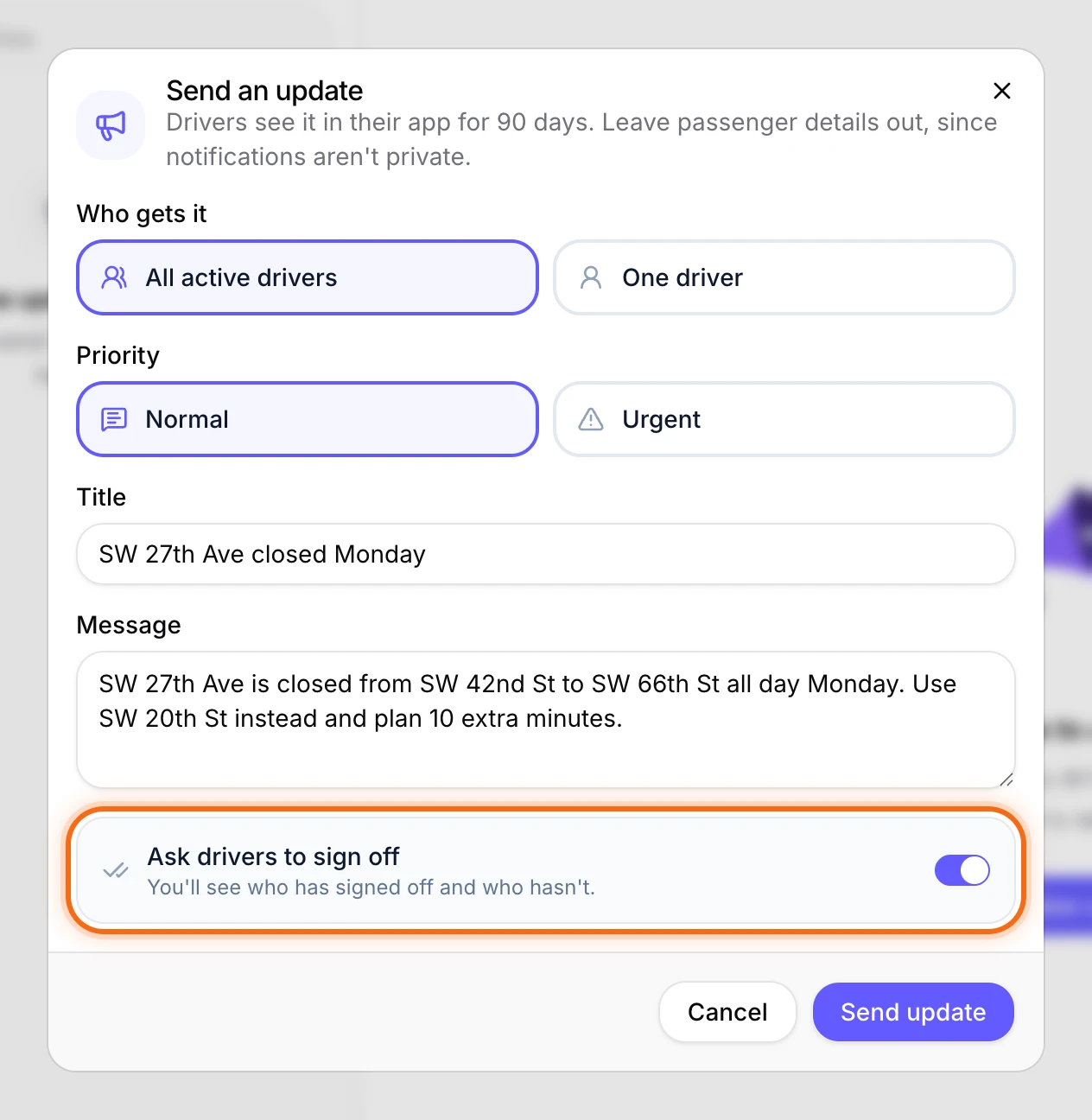 (opens a larger view)
Select Send update. You’ll see “Update sent.” and the update shows at the top of your list.
What your drivers see
Each driver gets a notification on their phone. The update stays in the Alerts tab of their app. If you asked them to sign off, it waits at the top of that list until they tap Acknowledge at the bottom of the update. It then says Acknowledged.
See who signed off
In the Updates tab, each update in the list says how far along it is, like “3 of 6 signed off” or “Everyone has seen it”. Select an update to see the names:
- Waiting on: drivers who haven’t signed off yet. Next to each name you’ll see “Seen” or “Delivered” with a time, or “Not delivered yet”.
- Signed off: drivers who have, with the time they did it.
If you didn’t ask for sign-off, the two lists are Haven’t seen it and Seen.
Good to know
- Who can send updates. Owners, admins and dispatchers. Office staff can message drivers but can’t send updates.
- It goes to drivers who have joined. Drivers who join after you send it don’t get it.
- You can’t edit or take back an update. To correct one, send a new update.
- You don’t get an alert when a driver signs off. Open the update to check, and message or call anyone still under Waiting on.
If something looks wrong
| What you see | What to do |
|---|---|
| There is no New update button | Only owners, admins and dispatchers can send updates. Ask your owner. |
| “No drivers to send to” | None of your drivers had joined when you sent it. See Add your drivers, then send the update again. |
| A driver shows “Not delivered yet” | Their phone hasn’t received it. Ask them to open the HealthRide Driver app and look in Alerts. |