
Give each person in your office their own sign-in. Their role decides what they can see and change. If you run the office yourself, you can skip this step.
Steps
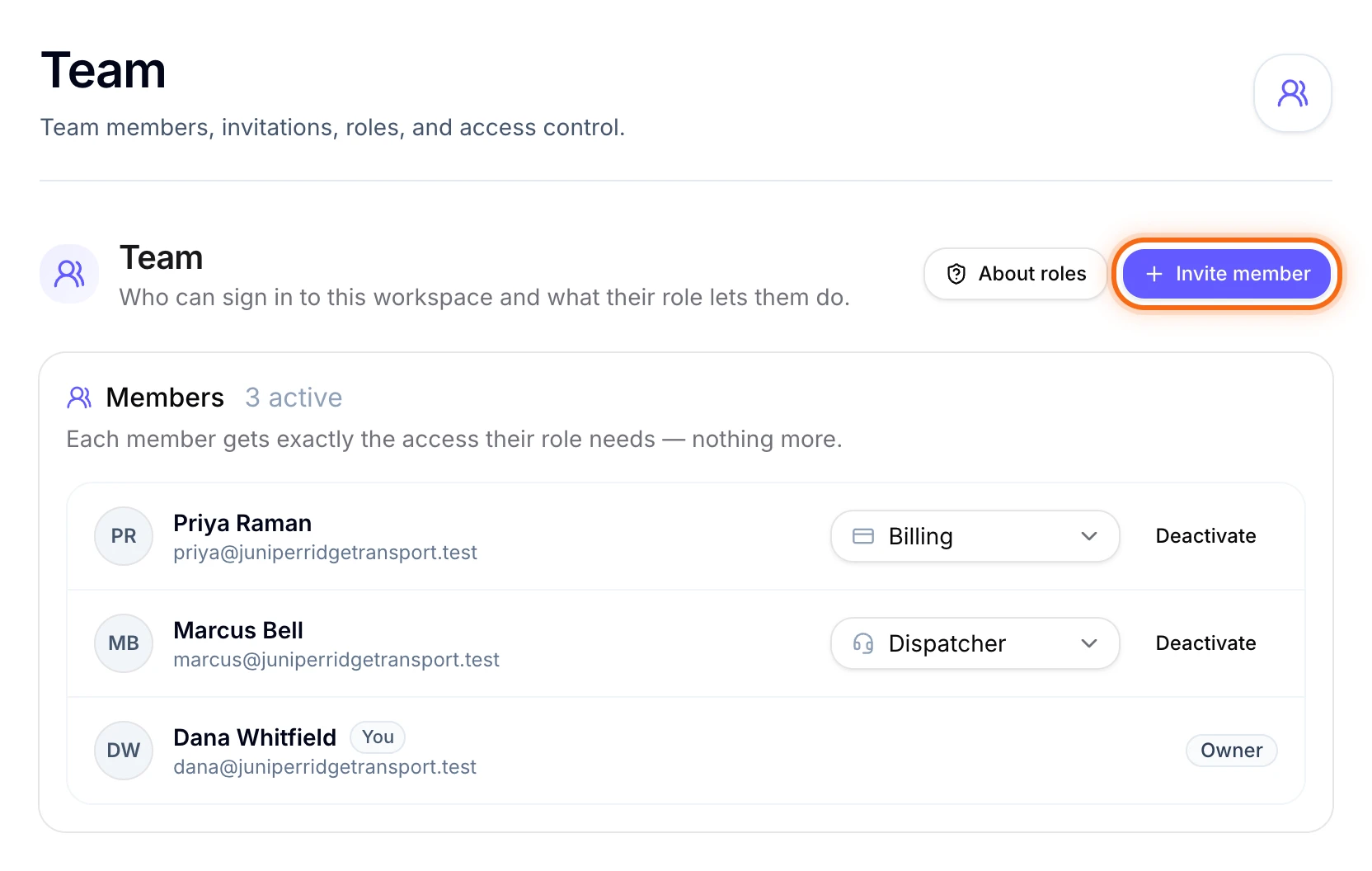
At the bottom of the menu on the left, select Settings. Then, under Business, select Team. The Team page lists your Members.
At the top right, select Invite member. The Invite a team member form opens. Only owners and admins see this button.
 (opens a larger view)
In Email, type the person’s email address.
Under Role, pick the one that fits their job, like Dispatcher for Marcus Bell. The form starts on Viewer, which can look but not change anything.
Select Send invitation. You’ll see “Invitation sent to” and their email. They show under Pending invitations with “Expires in 7 days”.
What your team member does
They get an email that says “You’re invited to HealthRide for” and your company name. Then they:
Select Accept invitation in the email. A page opens with your company name and their role.
Type their name, pick a password, and select Create account.
Type the 6-digit code we email them and select Verify and join.
They can also select Continue with Google instead of making a password. Once they join, they move from Pending invitations to Members.
What each role can do
| Role | What they can do |
|---|---|
| Owner | Everything. Only owners can change your HealthRide plan, set up online payments, give refunds, add brokers and insurance plans, and give a payer its own rates. |
| Admin | Everything else, including the team and settings. |
| Dispatcher | Books rides and gives them to drivers, plans the crew schedule, adds passengers and invites drivers. No billing. |
| Office staff | Books and changes rides, adds passengers and facilities, and keeps driver and vehicle papers up to date. Can’t give rides to drivers. No billing or company settings. |
| Billing | Makes invoices and records payments. Can see rides and passengers, but not change them. |
| Viewer | Can see rides, passengers, drivers and billing, but can’t change anything. Good for an accountant. |
| Dispatch from app | For a driver who also books rides and gives them out from the driver app. They use the driver app only. You turn it on from the driver’s page, not by invitation. |
To see the full list in the app, select About roles on the Team page.
Good to know
- Change a role at any time. On the Team page, pick a new role next to the person’s name. It saves right away.
- Take access away with Deactivate. Select Deactivate next to their name, and confirm. They lose access right away, and their past work stays. Reactivate gives it back.
- Only an owner can add another owner or admin. Admins give out the roles below their own.
- Drivers join from the Drivers page. See Add your drivers. To let a driver book and give out rides from their phone, open their page and turn on Can dispatch from the driver app.
If something looks wrong
| What you see | What to do |
|---|---|
| There is no Invite member button | Only owners and admins can invite. Ask your owner. |
| They can’t find the email, or their row says “Email failed” | Under Pending invitations, select Resend next to their email. Ask them to check their spam folder too. |
| “This invitation has expired.” | Links last 7 days. Select Resend next to their email. They get a new link, and the old one stops working. |