
Invite your drivers today, even if they start next week. Each one has to install the app and type their code before you can give them rides.
Steps
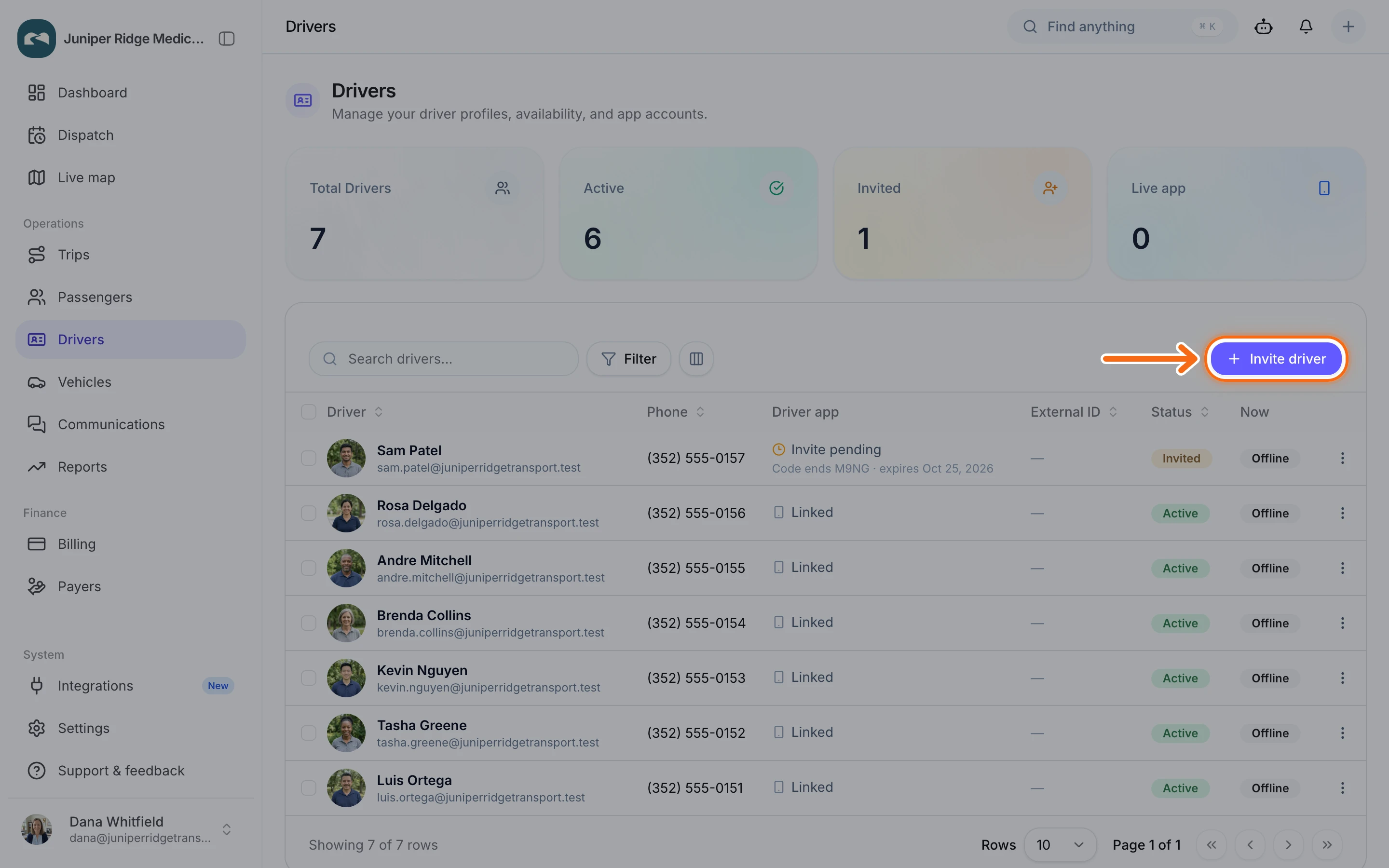
In the menu on the left, under Operations, select Drivers.
At the top right of the list, select Invite driver. The Invite new driver form opens.
 (opens a larger view)
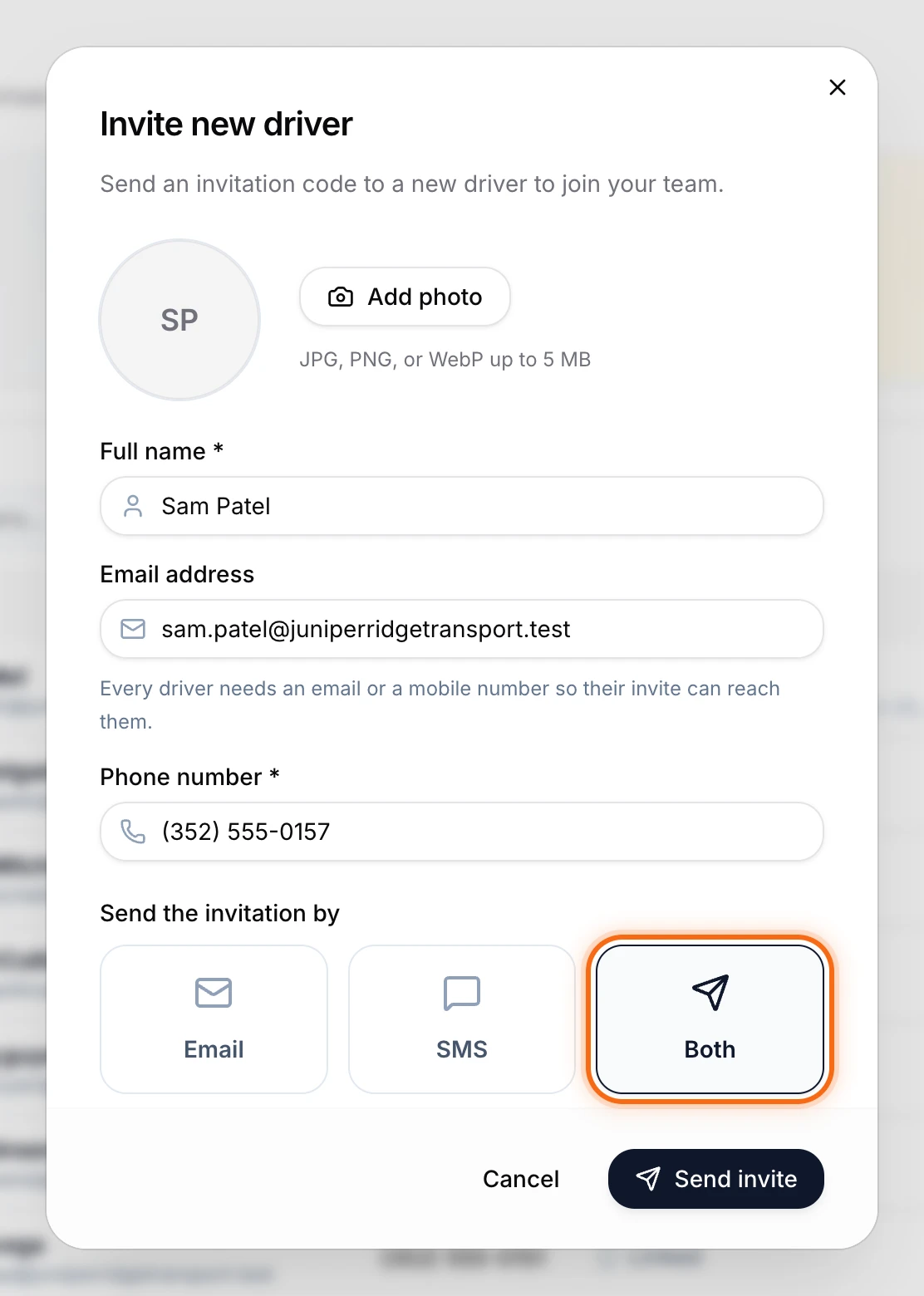
In Full name, type the driver’s first and last name, like Sam Patel.
Type their Email address and Phone number. You need at least one.
Under Send the invitation by, select Both to send a text and an email. With no email, select SMS for a text only.
 (opens a larger view)
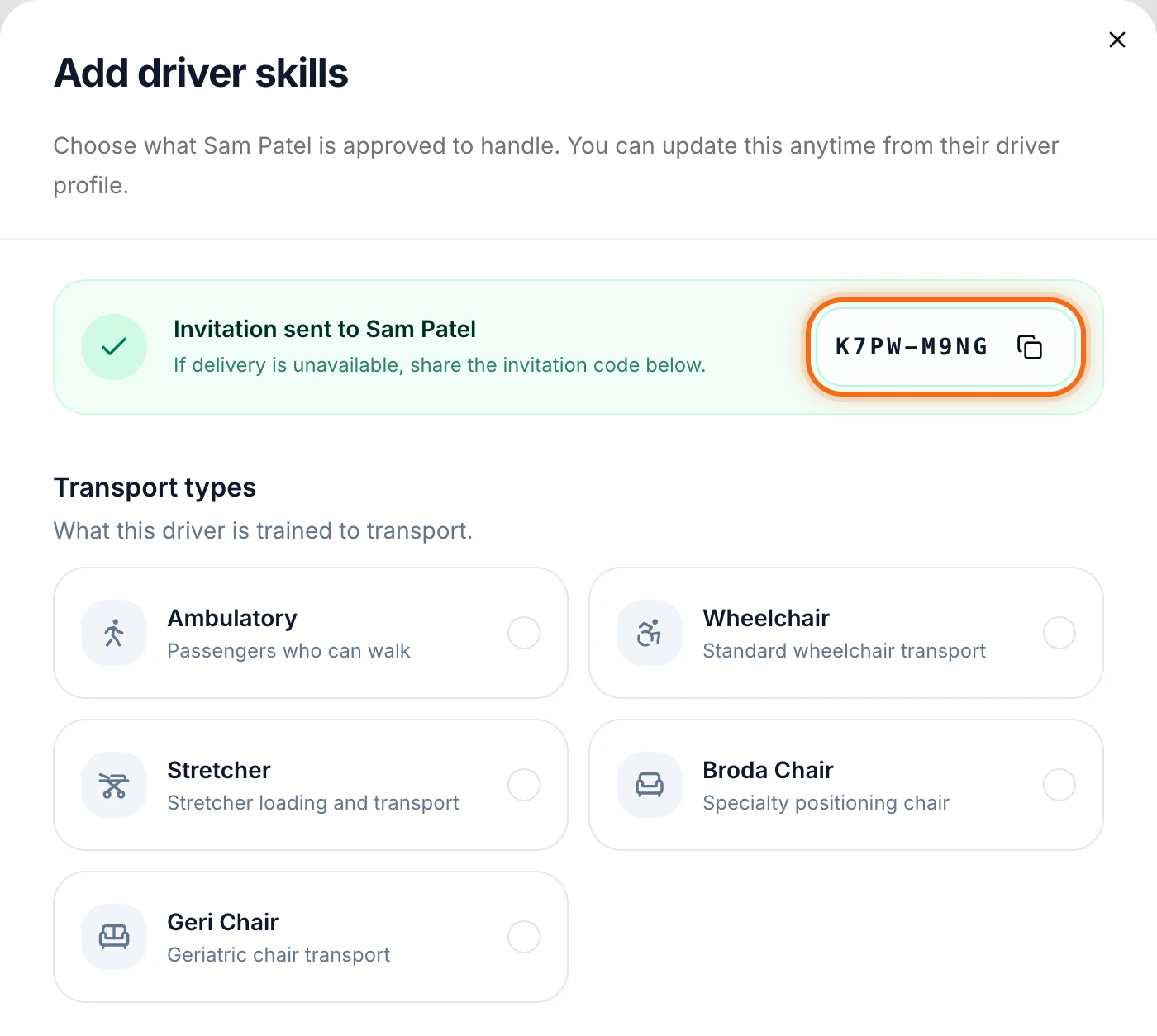
Select Send invite. You’ll see Invitation sent to Sam Patel and the code you sent.
 (opens a larger view)
Under Transport types, select what the driver is trained for, like Wheelchair or Stretcher, so those rides go to the right people. Then select Save skills, or Do this later to skip it.
What your driver does
The driver gets a text with their code and a link to the app. Then, on their phone, they:
Tap the link and install HealthRide Driver.
Open the app and tap Enter invitation code.
Type the code. The app shows Join Juniper Ridge Medical Transport. Then tap Continue to Sign Up.
Check their name and email, pick a password, and tap Continue. If you sent a text only, they type their email here.
Follow Set up your phone to allow location and notifications.
From then on, they sign in with that email and password.
Check who has joined
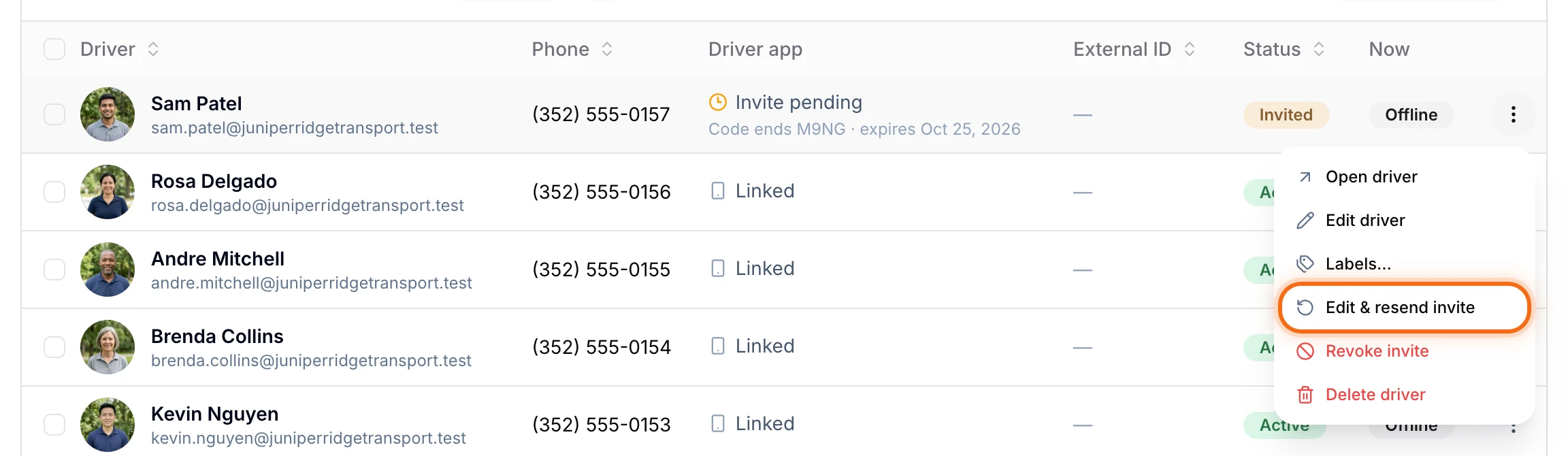
On your Drivers page, a driver who hasn’t joined yet shows as Invited and Invite pending. You can’t give them a shift or a ride yet. Once they join, they show as Active and Linked.
Codes last 7 days. To send the code again, or fix a wrong number, open the three-dot menu at the end of the driver’s row and select Edit & resend invite. After a code runs out, the menu says Send new invite.
 (opens a larger view)
Good to know
- Skills matter. If you give a wheelchair ride to a driver without Wheelchair, HealthRide asks you to confirm. You can change skills on the driver’s page.
- Do you drive too? At the top of the Invite new driver form, select Add me as a driver.
- Drivers only see rides on days they have a shift. You plan shifts in step 8, Plan your crew schedule.
If something looks wrong
| What you see | What to do |
|---|---|
| “A driver with this email already exists on your team.” | They have already joined. Search your Drivers list for their name. |
| Your driver didn’t get the text or email | Open the three-dot menu on their row and select Edit & resend invite. Check their number and email, then send it again. |
| The driver’s app says “That invitation code isn’t valid or has expired.” | Send a new code from the three-dot menu on their row. |
| The driver’s app says No Shift Assigned | They have joined. Give them a shift in Settings › Crew schedule. |