
You don’t have to remember where something lives. Type a few letters in the search at the top of the page and pick what you want.
Steps
At the top of any page, select Find anything, or press ⌘K on a Mac or Ctrl+K on Windows. The search opens. On a small screen, select the magnifying glass.
Type what you’re looking for, like texts or Luis. Results show as you type.
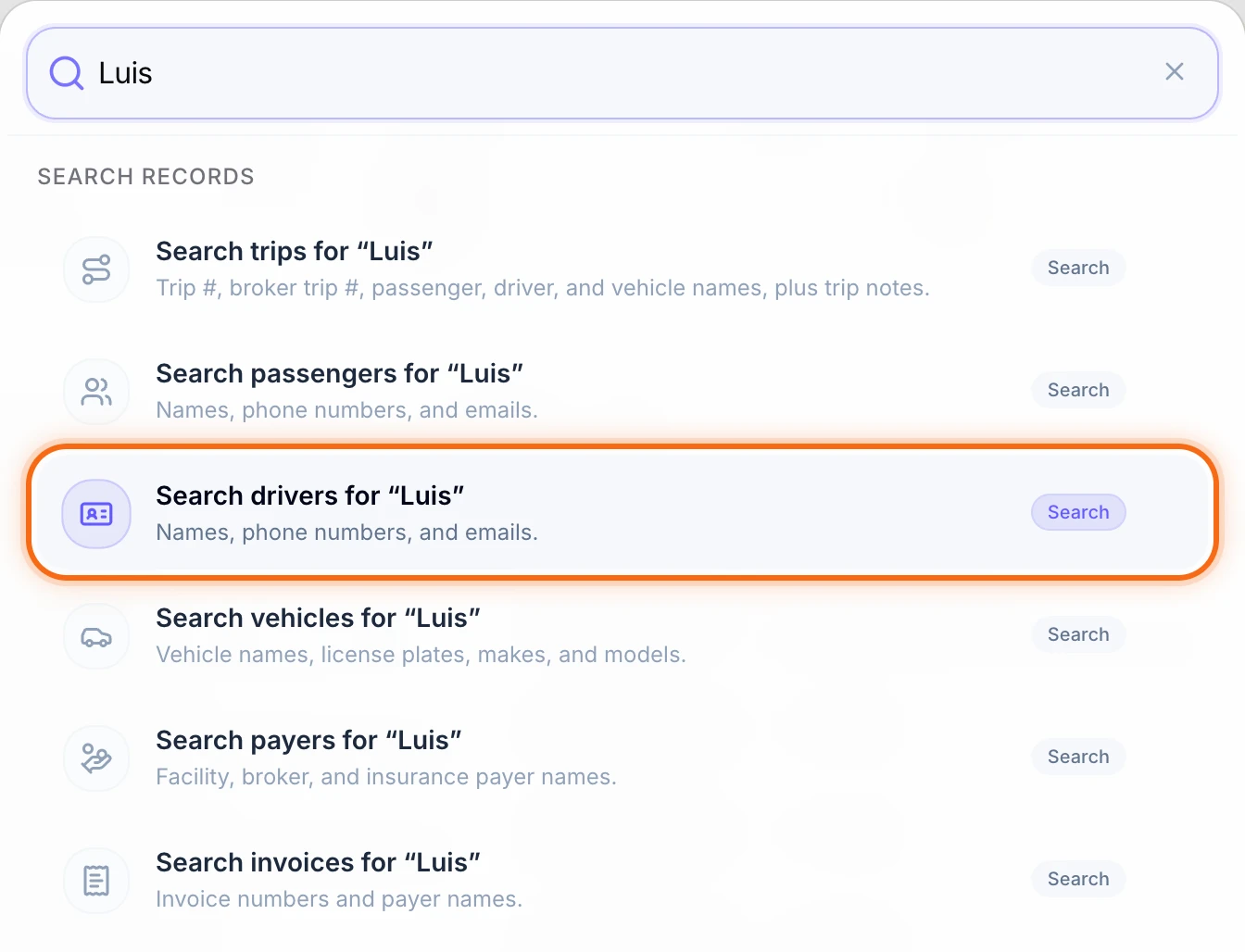 (opens a larger view)
Select a result, or move to it with the arrow keys and press Enter. The page or form opens. To close the search, press Esc.
What you can type
- A page or setting, like Billing, Crew schedule or Passenger texts. A setting opens at the right spot on its page. Everyday words work too: sms finds Passenger texts, shifts finds Crew schedule, and 2fa finds Security.
- Something you want to do, like Create trip, Invite driver, Add payer or Create invoice. The form opens right where you are.
- A name or number. Under Search records, pick where to look, like Search drivers for “Luis”. That list opens showing only the matches.
Each Search records row looks at different details:
| Row | What it looks at |
|---|---|
| Search trips | Trip number like K7M2QP, broker trip number, passenger, driver and vehicle names, and trip notes |
| Search passengers | Names, phone numbers and emails |
| Search drivers | Names, phone numbers and emails |
| Search vehicles | Vehicle names, license plates, makes and models |
| Search payers | Facility, broker and insurance names |
| Search invoices | Invoice numbers and payer names |
If your company has Ryder, the last row is Ask Ryder about your words. It opens Ryder and asks your question for you.
Good to know
- Before you type, the search shows Recent, what you opened last, and Suggested forms for the page you’re on, like Invite driver on the Drivers page.
- Part of a name or number works. Searching drivers for Orte finds Luis Ortega, and the last digits of a phone number find the person.
- Small typos are usually fine. pasenger still finds Passengers.
- You only see what you can open. Results follow your role, so a dispatcher doesn’t see Create invoice.
If something looks wrong
| What you see | What to do |
|---|---|
| “No results found” | Type at least two letters. For a page, try the name you see in the menu on the left. |
| ⌘K or Ctrl+K does nothing | Close the form or window that’s open first. Search doesn’t open on top of one. |
| A Search records row opens an empty list | Nothing in that list matched. Check the spelling, type fewer letters, or try another row, like Search trips instead of Search passengers. |