
These settings decide what drivers do in the app when a shift starts and ends, and on each ride. Choose them before your drivers’ first shift, so their first morning has no surprises.
Steps
At the bottom of the menu on the left, select Settings. Under Operations, select Driver app. The Vehicle checks tab opens.
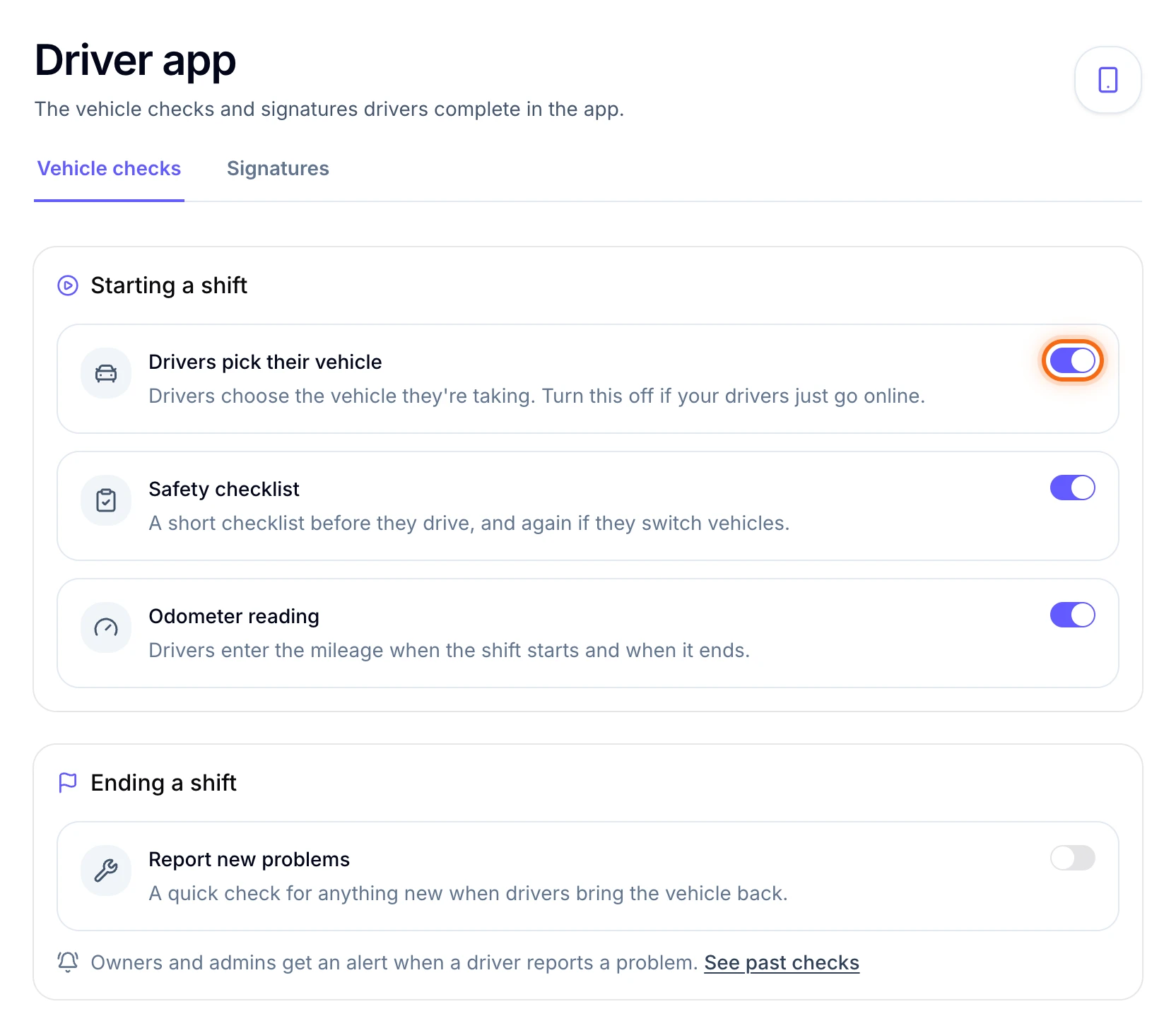
Turn each switch on or off. What each one does is below.
 (opens a larger view)
Select the Signatures tab at the top. Pick a Passenger signature, and turn Driver signs too on or off.
Select Save changes in the bar at the bottom of the screen. You’ll see “Driver app settings saved.”
Vehicle checks
- Drivers pick their vehicle. Starts on. Drivers take out a vehicle when they start a shift. The one on their shift is filled in, and they can change it. Turn it off only if your drivers go online without taking a vehicle. Then there’s no checklist or odometer, and their time log can’t show when they clock in and out.
- Safety checklist. Starts on. Before they drive, and again if they switch vehicles, drivers mark each item Pass or Fail: tires, brakes, lights and signals, mirrors and windows, seatbelts and doors, cleanliness and emergency equipment. Wheelchair vehicles add the lift or ramp and the tie-downs. A failed item doesn’t stop the shift. Owners and admins get an alert, and you decide if the vehicle stays on the road.
- Odometer reading. Starts on. Drivers type the mileage when the shift starts and when it ends. If a reading is lower than the last one, the app asks them to confirm it.
- Report new problems. Starts off. When drivers end their shift, they check the vehicle again for anything new. Turn it on if you want a check each time a vehicle comes back.
Signatures
- Passenger signature. Starts Off. Pick Once per trip for one signature, at pickup or drop-off. Pick At pickup and drop-off for one at each stop.
- Driver signs too. Starts off. The driver adds their own signature at pickup and at drop-off.
Turn signatures on if the brokers or facilities you bill ask for them. Some payers refuse to pay for a ride without one. For a different rule for one payer, open it from Payers and change Passenger signature in its Signatures box.
Good to know
- See past checks. Under Operations, select Vehicles, then the Inspections tab.
- Some brokers have their own signature rule. Their payer page shows it, and you can’t set a lower one for them.
- Drivers are reminded. When a ride needs signatures, the app tells the driver before it starts, and the signature page opens by itself at the right stop. See What do drivers do in the app?
If something looks wrong
| What you see | What to do |
|---|---|
| Safety checklist, Odometer reading and Report new problems are gray | Turn on Drivers pick their vehicle. The others only work when drivers take a vehicle. |
| A driver’s time log says Clock-ins aren’t recorded | Turn on Drivers pick their vehicle. |
| A driver’s app says Vehicle Checkout Is Off | You turned off Drivers pick their vehicle. They pull down to refresh and start their shift again. |
| There’s no Driver app in Settings | Only owners and admins can change these settings. Ask your owner. |