
Reminder texts help passengers be ready when the driver comes. They start off. A passenger gets texts only once you turn them on here and on their profile.
The texts passengers get
- Reminder before the ride. The pickup day and time, sent a set number of hours ahead. It starts at 24 hours.
- Driver on the way. The driver’s first name and about when they’ll arrive. It goes about 15 minutes before the driver gets there, once the driver has started the ride.
- Tracking link. Added to both texts. Passengers and family open it to follow the ride, with the driver on a map once they’re on the way.
Each text starts with your company name and ends with “Reply STOP to opt out.”
Steps
At the bottom of the menu on the left, select Settings. Under Operations, select Texts & emails. The Passenger texts tab opens.
Turn on Reminder before the ride. Next to hours before pickup, type how early it goes, like 24. The phone beside the switches shows each text as passengers get it.
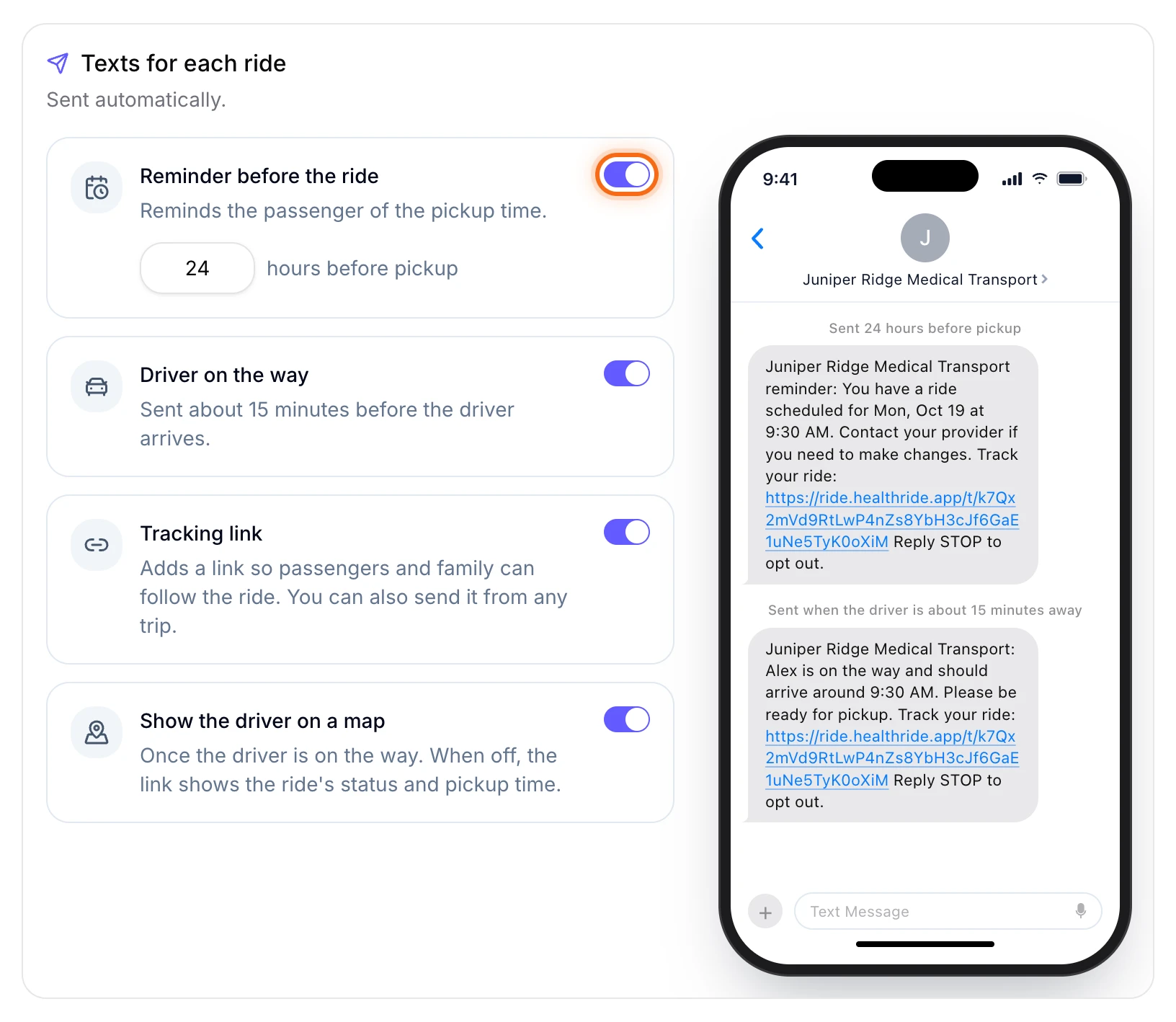 (opens a larger view)
Turn on Driver on the way.
Check that Tracking link is on. To hide where the driver is, turn off Show the driver on a map. The link then shows only the ride’s status and pickup time.
Under What passengers and facilities see about the driver, pick how much the link shows, from Nothing to Name, photo, and full vehicle.
Select Save changes in the bar at the bottom of the screen. You’ll see “Texts and emails saved.”
Turn texts on for each passenger
Texts only go to passengers who said yes. Under the switches, you see how many of your passengers can get texts. Select Show them to list the others.
Open the passenger from Passengers.
In the Notifications box, select the pencil.
Turn on Text them trip reminders and check the box that says the passenger agreed. Then select Save changes.
Who doesn’t get texts
- Passengers who haven’t said yes, or have no phone number. Every passenger starts with texts off, even those added by a facility or from a spreadsheet. Only a passenger who checks Text me updates about this trip on your booking form turns them on for themselves.
- Passengers who replied STOP. They get no more texts until they reply START.
- Will-call rides, for the reminder only. The pickup time isn’t known until the passenger calls. They still get Driver on the way.
Good to know
- Rides already booked get texts too once you turn them on.
- Each ride gets its own texts. On a round trip, the ride home gets a reminder too.
- Booked at the last minute? If the pickup is sooner than your reminder time, the reminder goes out right away.
- Texts are in English.
- Send the link yourself. On a trip’s page, select Share tracking link. Links stop working an hour after the ride ends.
If something looks wrong
| What you see | What to do |
|---|---|
| A passenger didn’t get a text | Open them in Passengers. In Notifications, SMS trip reminders should say Enabled. Check their Phone too. |
| A passenger replied STOP and now wants texts again | Ask them to reply START to one of your texts. |