
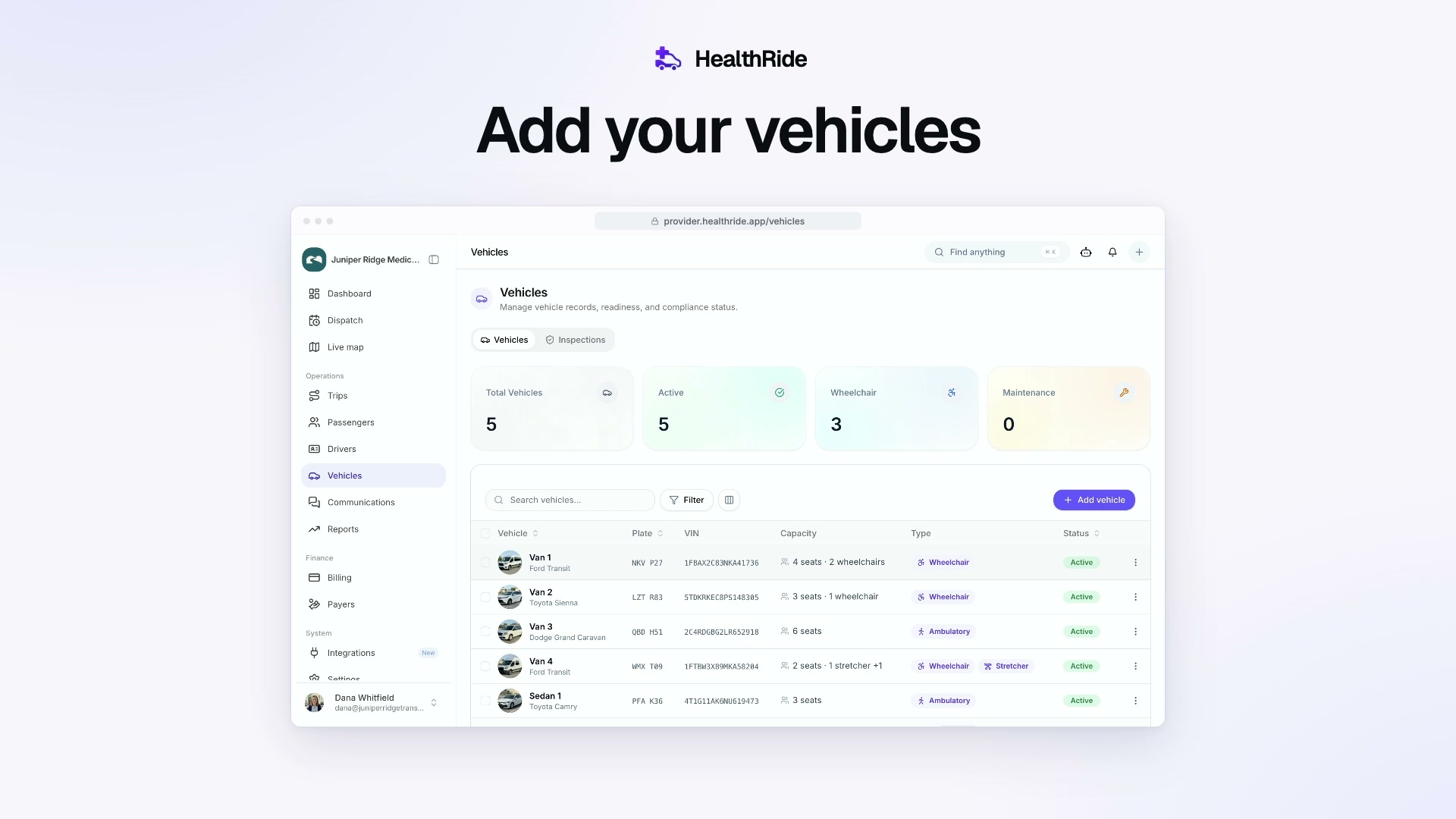
Add each vehicle once. Its seats and spots decide which rides it can take.
Steps
In the menu on the left, under Operations, select Vehicles. Your list of vehicles opens.
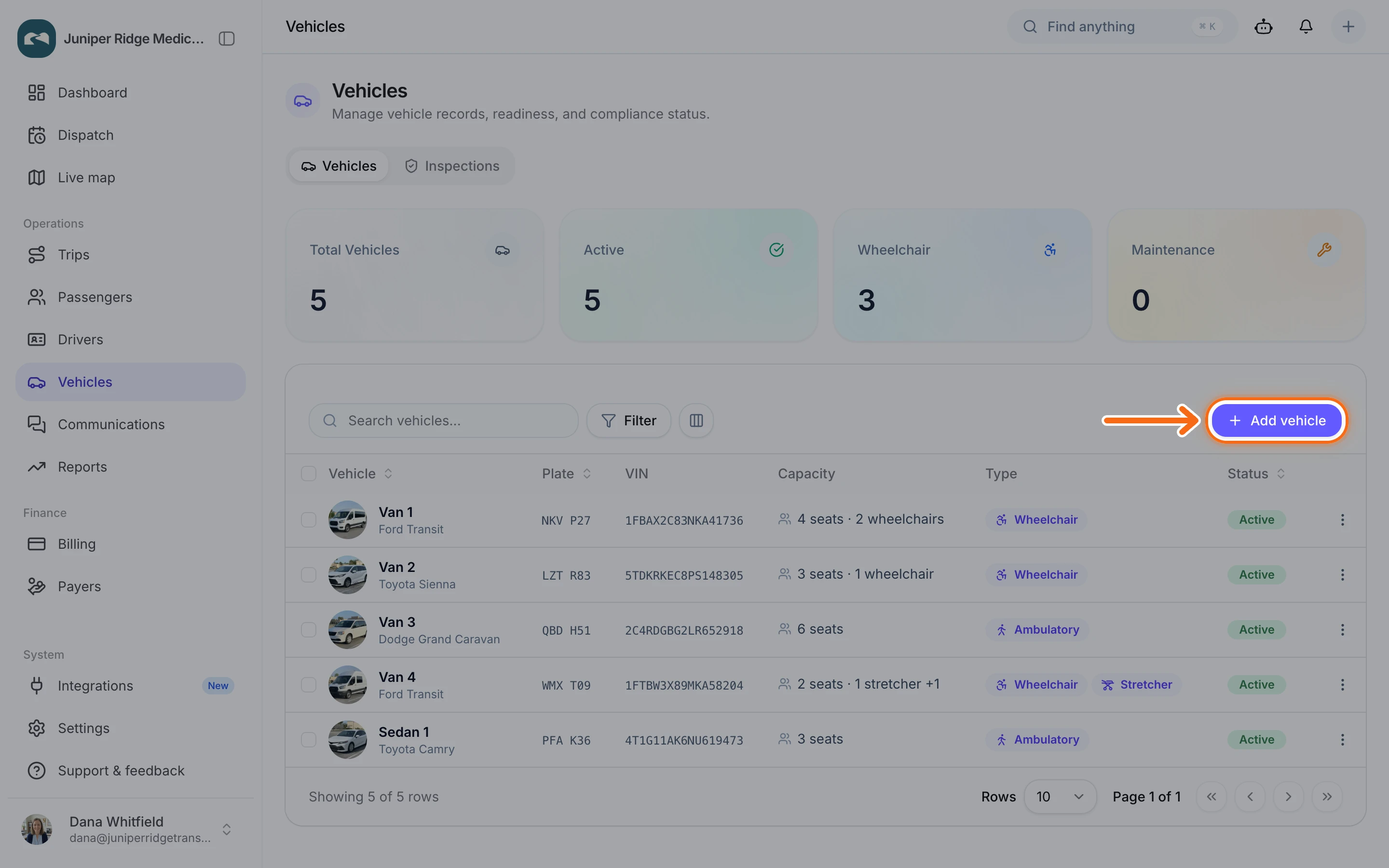
At the top right of the list, select Add vehicle. The Add vehicle form opens on Step 1 of 2.
 (opens a larger view)
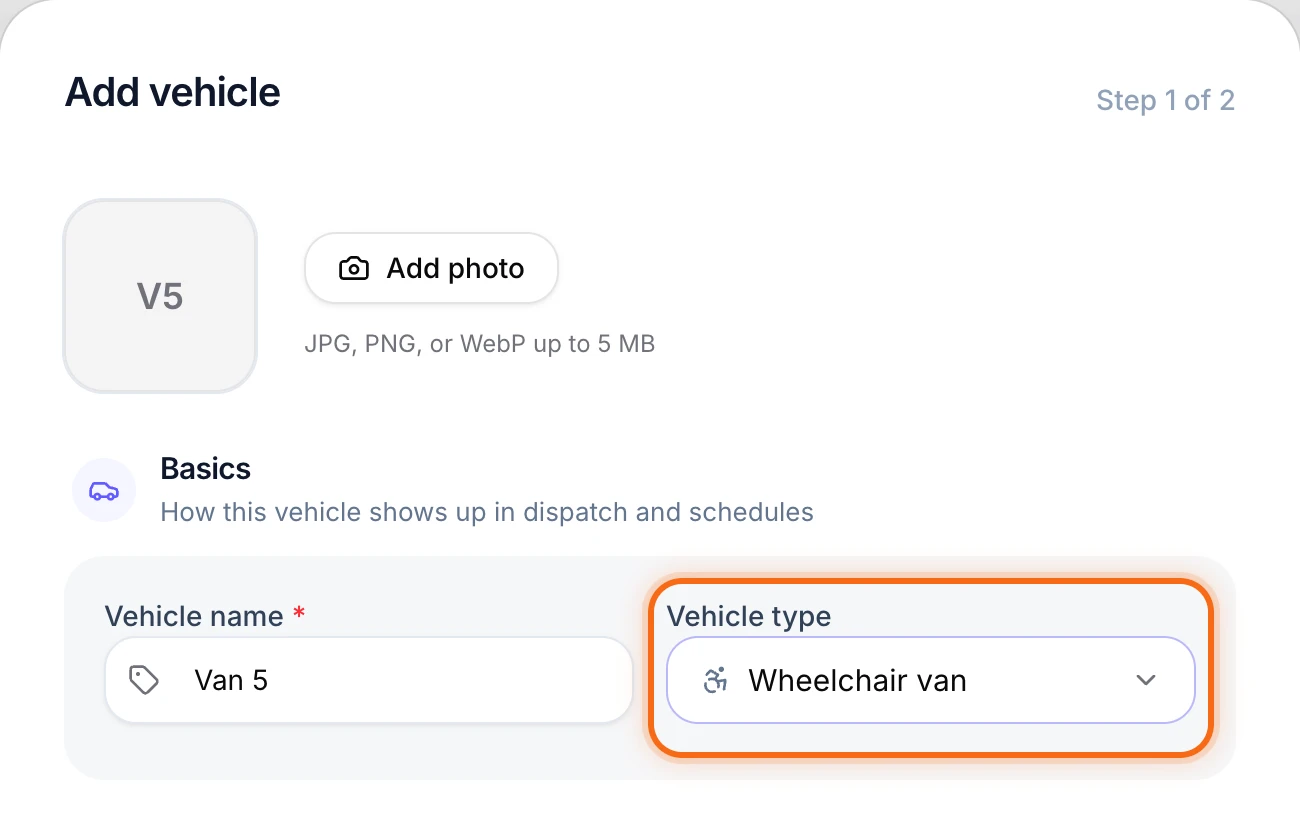
In Vehicle name, type the name your drivers use, like Van 5. Drivers see this name in their app when they start a shift.
In Vehicle type, pick the kind of vehicle, like Wheelchair van.
 (opens a larger view)
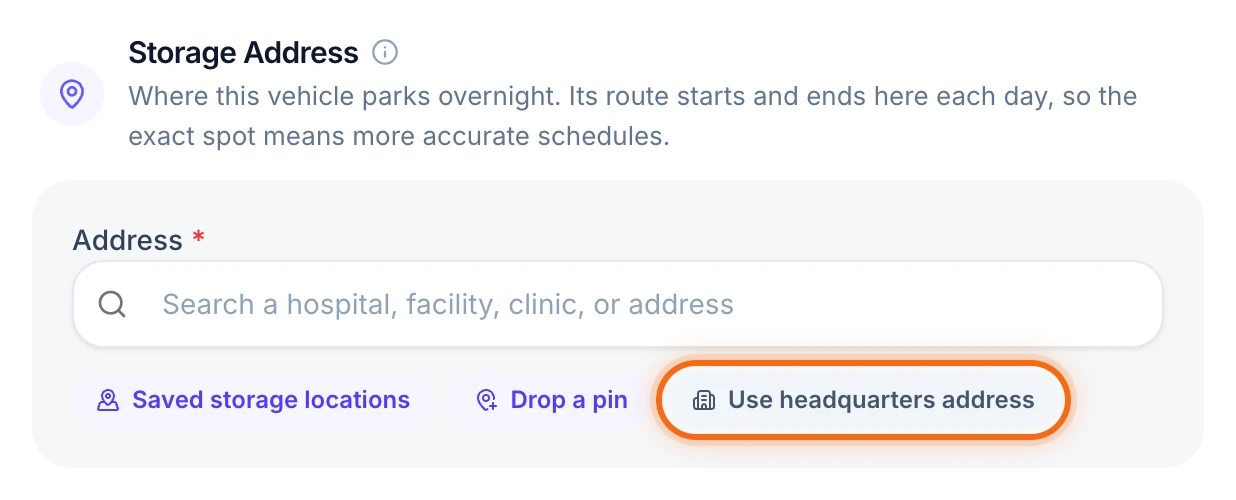
Under Storage Address, type where the vehicle parks overnight and pick it from the list. Its day starts and ends there, so ride times come out right. If it parks at your office, select Use headquarters address instead.
 (opens a larger view)
If you have it, type or paste the 17-character VIN in VIN. HealthRide fills in the make, model and year for you. Then type the License plate. You can skip both and add them later.
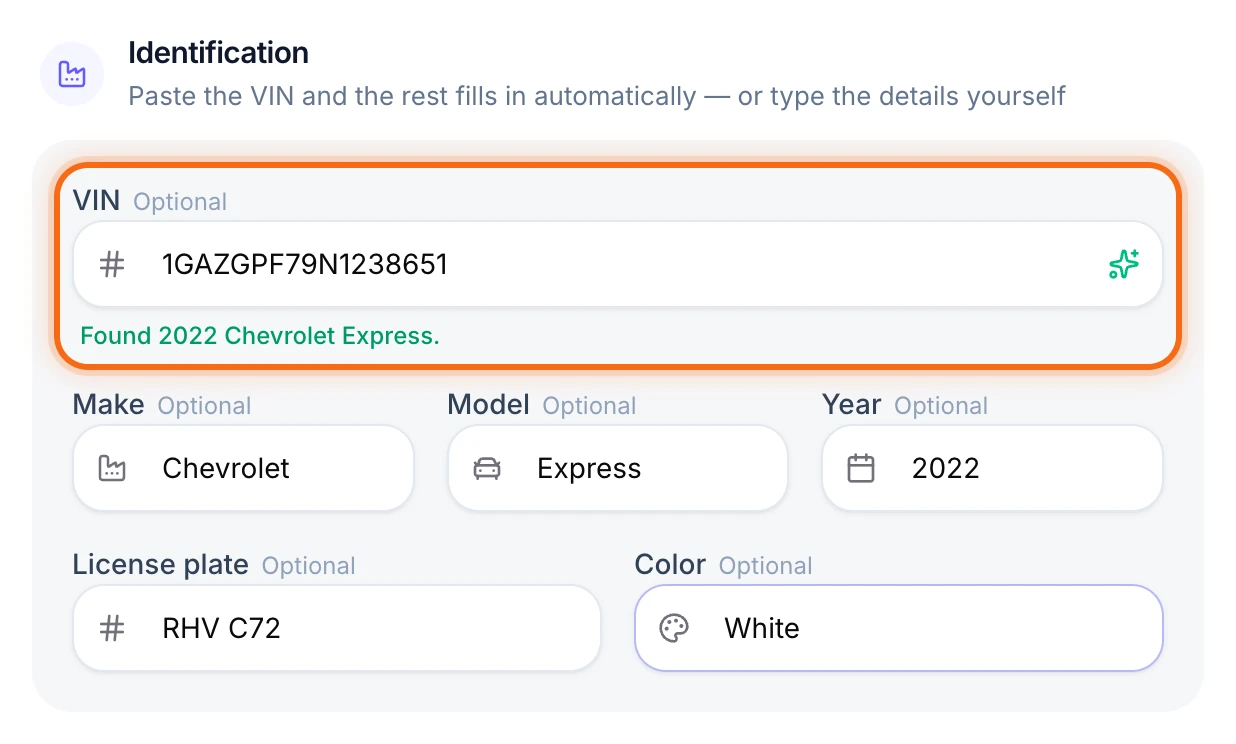 (opens a larger view)
Select Next. The Capacity page opens.
Use the minus and plus buttons to set Seats, Wheelchair spots and Stretcher spots. Count what fits at the same time. Van 5 has 4 seats and 2 wheelchair spots.
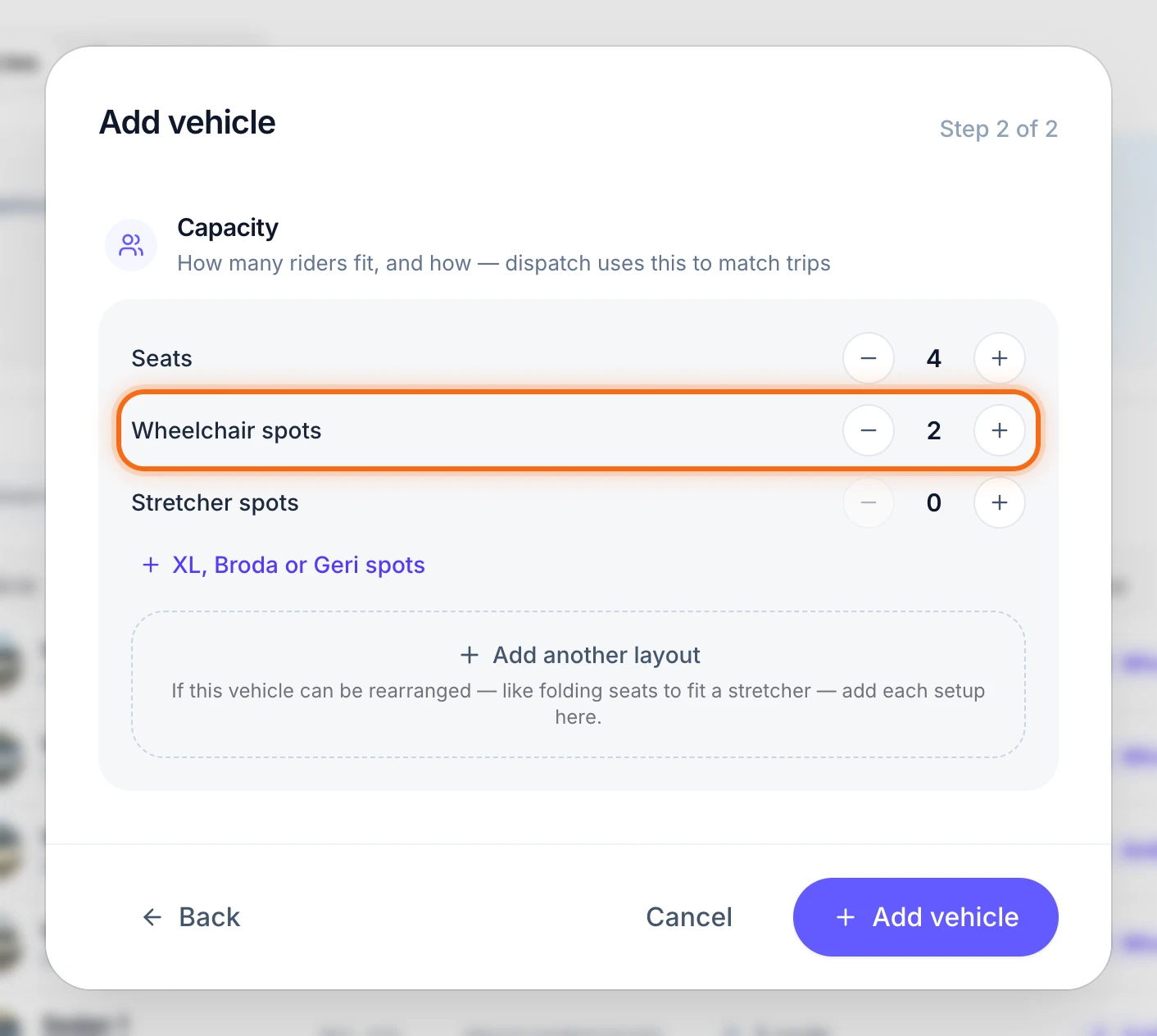 (opens a larger view)
Select Add vehicle. You’ll see “Van 5 added.” and the van shows in your list.
Do the same for each of your vehicles.
Good to know
- Seats and spots decide who fits. A wheelchair ride only goes to a vehicle with a wheelchair spot. When you pick Wheelchair van, the form adds one wheelchair spot for you. Change it to match your van.
- Some vans can be set up more than one way. If you fold seats to fit a stretcher, select Add another layout and count each setup.
- XL, Broda and Geri chairs have their own counts. Select XL, Broda or Geri spots to see them.
- Your plan covers a set number of vehicles. Every vehicle counts except retired ones, even vehicles in the shop. When your plan is full, Add vehicle first asks the owner to add room.
- Add the paperwork dates. On the first page, fill in Registration expires and Insurance expires, and HealthRide reminds you before they run out.
If something looks wrong
| What you see | What to do |
|---|---|
| Next stays gray | Type a Vehicle name, and pick an address from the list under Storage Address. Both are needed. |
| “This VIN may have a typo.” | Check the VIN on the registration card. The vehicle still saves, but brokers may turn down rides if the VIN is wrong. |
| Manage vehicle limit or Vehicle limit reached opens | Your plan is full. The owner adds room: select the plus button, check the New monthly total, and select Confirm change. If you’re not the owner, ask them. |
| “Van 3 has no Wheelchair space.” when you give a ride to a van | Give the ride to a van with a wheelchair spot. If Van 3 has one, open it in Vehicles, select Edit vehicle, then Next, and add the spot. |