
A trip is one ride, from a pickup to a drop-off. For a round trip, you book the ride there and the ride home on the same form.
Steps
At the top of any page, select the + button, then Trip. The Plan a new trip form opens. Create trip on the Trips page opens it too.
Under Passenger, select Select passenger and search for the rider, like Ruth Bennett. Their usual ride type and travel needs fill in. For someone new, select New passenger at the top of the list.
Check Payer. It fills in by itself: Facility pays when the rider belongs to a facility, otherwise Rider pays. To bill a broker or an insurance plan, select Change, then Other payer, and pick it.
Check the Ride type, like Wheelchair. Under Travel needs, select what the driver should know about, like Oxygen or Stair chair.
Under Route, type the Pickup address and pick it from the list, or select Use home or Saved places. Do the same for Drop-off.
Pick the Trip date. If the rider has an appointment, type the Appointment time and select Suggest pickup time. HealthRide adds up the drive, the time to get in and out, and how early you like riders to arrive, and fills in Pickup time. Without an appointment, type the Pickup time yourself.
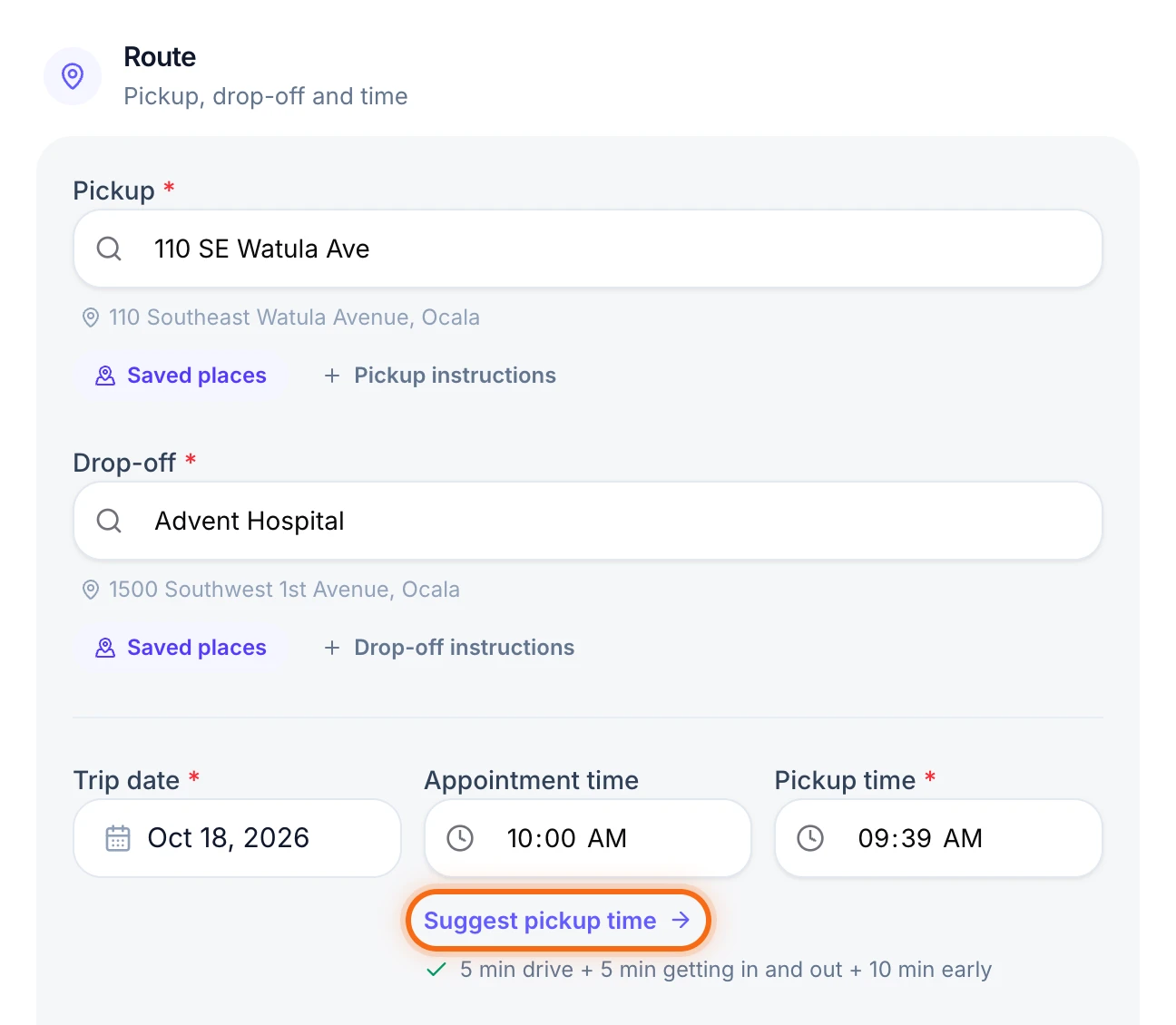 (opens a larger view)
For the ride home, select Round trip. Leg 2 appears with the addresses reversed. Type its Pickup time. If the rider will call when ready, turn on Will-call and type your best guess. See Book a will-call trip.
Check the Price. Select Auto-price to price it from your rates, or type your own. Left empty, it’s priced from your rates when you save. The Total fare shows next to Create trip.
Select Create trip. You’ll see “Trip created.” with each trip’s pickup time and trip number. Select Copy details to paste them into a text for the rider.
Good to know
- A new trip waits on Dispatch. Until it has a driver, it shows under Unassigned on the dispatch board. Give it to a driver there, or let Ryder Go plan the day. To pick a driver while you book, select Add driver above the price. They need a shift that day.
- Drivers see the stop notes. Pickup instructions and Drop-off instructions, under each address, show in the driver’s app. Internal notes stay with your office.
- Same ride every week? Turn on Repeat this trip under Repeats. See Book a repeating trip.
- Same ride again? Open the trip and select Book again. Pick the new date and time, and the rest is copied.
- Fees and discounts go on after you save. Open the trip, select Edit trip, then Add fee or discount.
If something looks wrong
| What you see | What to do |
|---|---|
| Create trip stays gray | Point at it to see what’s missing, like “Choose a passenger.” or “Pick a pickup time.” |
| “Check the appointment time” | The appointment is more than 6 hours after the pickup. Check AM and PM, then select Go back or Keep this time. |
| “This looks like a duplicate” | The rider already has a trip like this one. Check the trips it lists, then select Go back or Book anyway. |
| “Trip booked, but the driver wasn’t assigned” | The trip saved without the driver. The message says why, often a missing shift. Give it to a driver on Dispatch. |